Can I start for free?
Yes. Pixsama Free includes canvases up to 128 × 128 pixels, 3 layers, 6 animation frames, basic onion skinning and PNG export. Pro is an optional one-time purchase.
Compare the Free and Pro features →Available on Google Play · Android 10+
Pixsama is a free pixel art app for Android phones and tablets. Draw sprites, mix a palette, animate frame by frame, and drag the panels to wherever your thumbs actually land.
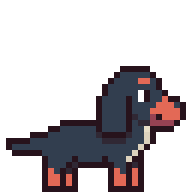
Make game sprites, small illustrations and frame-by-frame animations on Android 10 or newer. Draw with your finger or a compatible stylus, work offline, and export your artwork without creating an account.
Yes. Pixsama Free includes canvases up to 128 × 128 pixels, 3 layers, 6 animation frames, basic onion skinning and PNG export. Pro is an optional one-time purchase.
Compare the Free and Pro features →Pro can import and export editable .ase and .aseprite files, including supported layers, frames, timing and palettes. This lets you continue a sprite project between Android and your desktop.
Read about importing projects →Start with a small canvas and a few colours. Our first-sprite tutorial walks through drawing a 16 × 16 sprite, shading it, adding a second frame and exporting a crisp PNG.
Make your first pixel art on Android →Start at 32 × 32, mix the colours you need, add frames until it moves. No round trip through a desktop at the end.
Zoom until one pixel is wider than your thumb, then place it. Smooth freehand motion, clean doubled corners with Pixel Perfect, or draw and hold to snap a rough line, circle or rectangle into shape.
Mix a palette and keep it. Work indexed and one swatch edit repaints everything using it, which is how you restyle a whole sprite in about four taps.
Add a frame, ghost the last one through with onion skinning, give it a duration and watch the loop play. All of it in the same project file.
The palette, timeline, preview and reference windows float free. Move them, resize them, dock them, or fold them away.
The canvas keeps the middle of the screen. Everything else you can drag, dock or fold away until the workspace suits how you happen to be holding the thing.
Smooth a freehand stroke, draw and hold to snap it into a clean shape, or close a contour and fill it. Curves, gradients and shapes preview before they touch the canvas.
Name a range of frames and one project holds the walk, the idle and the attack. Link a cel and a held pose is one drawing shared between frames, not six copies of it.
Save a palette and switch the project to indexed colour. After that, editing one swatch recolours every pixel that was using it.
Drag the palette, timeline, preview and reference panels to wherever your thumbs actually are. Flip the whole layout left-handed. Stylus pressure and hover work where the hardware does.
The native archive keeps layers, frames, timing and palettes intact, so you get a project back rather than a flattened PNG. Aseprite files open and save from the same gallery. And autosave recovery catches the session your phone decided to end.
Not a trial. Core drawing tools, the timeline, onion skinning, indexed colour, PNG export and native project export are included in the free version. Pro raises the ceilings and adds advanced workflows and export formats.
Three layers and six frames is a real limit, and it is also enough for most 32 × 32 sprites. Pro lifts the ceilings and adds the export formats. It does not hand you tools that were being withheld.
Core drawing tools, the timeline, PNG export and native project export. Enough to finish a sprite and post it.
The same editor with the limits taken off. One payment, not a subscription and not a rental.

Draw pixel art and animate sprites on your Android phone or tablet. Start with Free, or unlock advanced workflows with Pixsama Pro.
Get it on Google Play